How to Go LIVE on TikTok: Requirements and Step-by-Step Setup
The age and follower requirements, the exact taps to start a stream, and the settings worth checking before your first LIVE.
Going LIVE on TikTok is one of the most direct ways to connect with an audience in real time. Viewers can talk to you, send Gifts, and join your stream as guests, and the whole thing happens without editing a single clip.
This guide covers what you need before the LIVE option appears, how to start a stream on your phone and on a computer, and the settings that are worth checking before you tap Go LIVE.
TikTok LIVE requirements
TikTok sets a few conditions before an account can host a LIVE. The exact rules can change and can differ between countries, so treat this as a checklist rather than a guarantee.
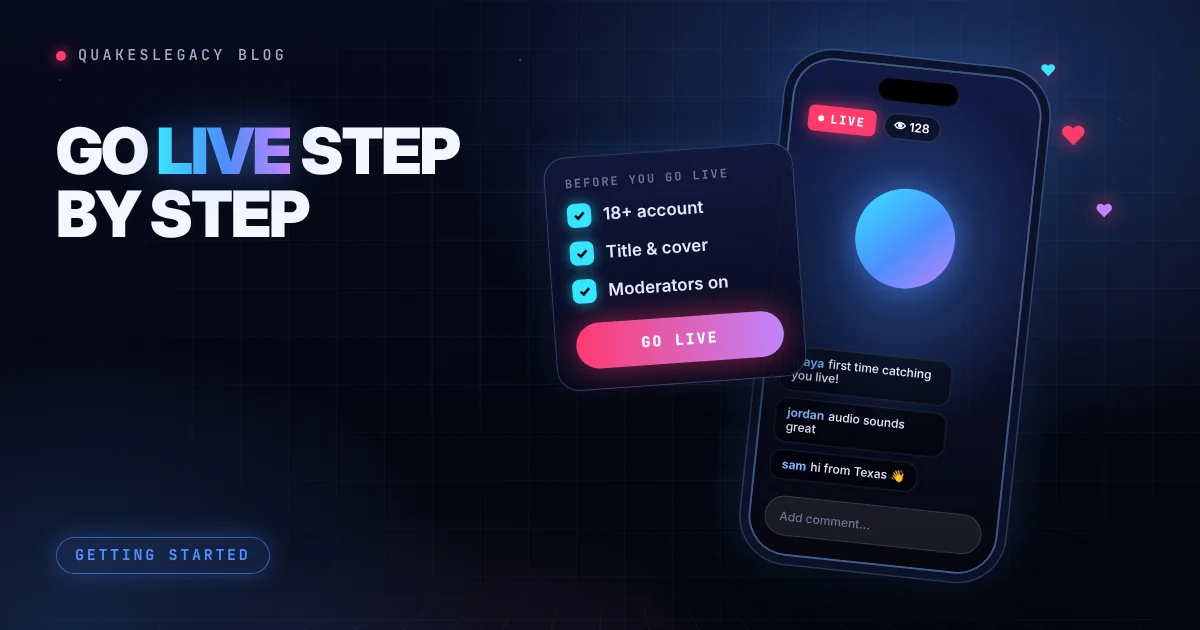
- Age: you must be 18 or older to host a LIVE. Sending and receiving Gifts also requires being 18 or older.
- Followers: TikTok has commonly required around 1,000 followers before LIVE is unlocked. Some regions and some accounts see a different threshold.
- Account standing: an account with recent Community Guidelines violations can lose LIVE access for a period. You can see this under Settings and privacy → Account → Account status.
- App version: older versions of the app sometimes hide newer LIVE features. Update before you troubleshoot anything else.
If you are working with an official TikTok LIVE agency, they may be able to help with access questions, but no one outside TikTok can override the age rule or a Community Guidelines restriction.
How to go LIVE on TikTok from your phone
Once your account has access, starting a stream takes less than a minute.
- Open TikTok and tap the + button at the bottom of the screen.
- Swipe across the camera modes until you reach LIVE.
- Pick a cover image and write a short title that tells people what is happening. "Late night Q&A about first apartments" works better than "come chat".
- Tap the settings options to choose who can comment, add moderators, turn on keyword filters, and decide whether viewers can request to join as guests.
- Check your framing, lighting and sound in the preview.
- Tap Go LIVE. TikTok usually shows a short countdown before you are on air.
To end the stream, tap the power icon or the X in the corner and confirm. TikTok then shows a summary of the session that is worth a quick look every time.
How to go LIVE on TikTok from a computer
Streaming from a computer is popular with gaming creators and anyone who wants overlays, scenes or a better camera. There are two main routes.
TikTok LIVE Studio is TikTok's own desktop app. You sign in with your TikTok account, set up your camera, microphone and game or screen capture, and go LIVE from there. It is the simplest option if your account has access.
A stream key lets you use third-party software such as OBS. Stream keys are not available to every account, and TikTok decides who gets one. If you have access, you generate a server URL and key, paste them into your streaming software, and start the stream from that software.
Whichever route you use, do a short private test first. Check that the audio is not echoing, that the image is the right way up, and that your phone is not also streaming at the same time.
Settings to check before your first LIVE
A few minutes of setup prevents most of the problems new creators run into.
- Moderators: add one or two people you trust. They can mute or remove viewers while you focus on the stream.
- Keyword filters: add words you do not want in your chat. TikTok hides comments that contain them.
- Comment settings: decide whether everyone can comment or only followers.
- Guest requests: if you are not ready for guests, turn requests off so you are not juggling pop-ups.
- Title and topic: pick a clear title and, where the app offers it, a topic or category so TikTok knows what your LIVE is about.
What to do in your first five minutes
The opening minutes matter because that is when early viewers decide whether to stay. Say hello to people by name as they arrive, tell them what the stream is about, and give them something to respond to, such as a question or a quick poll. Avoid long silences while you fix settings, which is why the preview step above is worth doing properly.
If you want a fuller list of habits for early streams, read our TikTok LIVE tips for beginners.
Troubleshooting: the LIVE button is missing
If you cannot find LIVE in the camera modes, work through this list:
- Confirm your account's age is set correctly and that you are 18 or older.
- Check your follower count against the requirement in your region.
- Open Account status and look for any active restriction.
- Update the TikTok app and restart your phone.
- Contact TikTok through Settings and privacy → Report a problem if none of the above explains it.
Next steps
Once you can go LIVE, the next things to learn are how Gifts turn into earnings and how to build a regular audience. Our guide to TikTok LIVE Gifts, Coins and Diamonds explains the money side, and how to grow on TikTok LIVE covers the audience side.
Frequently asked questions
How many followers do you need to go LIVE on TikTok?
TikTok has commonly asked for around 1,000 followers before the LIVE option appears, but the requirement varies by region and account, and TikTok can change it. The fastest way to check is to tap the + button and look for LIVE in the camera modes.
How old do you have to be to go LIVE on TikTok?
You must be at least 18 to host a TikTok LIVE, and 18 or older to send or receive LIVE Gifts.
Can I go LIVE on TikTok from my computer?
Yes, if your account has access. TikTok LIVE Studio is TikTok's desktop app for streaming from a computer, and some creators can also get a stream key for software like OBS. Access to both depends on your account and region.
Why don't I see the LIVE button on TikTok?
Usually it is because the account is under 18, has not met the follower requirement for its region, has a recent Community Guidelines restriction, or the app needs updating. Check your Account Status in Settings and update the app first.